⚠️ IMPORTANT NOTE: Squarespace enables its native Analytics cookies by default. To ensure compliance, these must be disabled directly within the Squarespace interface.
Currently, Squarespace does not provide a Consent API. As a result, it is not technically possible to conditionally load Squarespace’s native Analytics cookies based on user consent. To remain compliant, these cookies must therefore be permanently disabled.
Please note that this means you will need to rely on alternative analytics solutions for visitor tracking.
We recommend contacting Squarespace directly to inquire whether and when a Consent API may become available.
Implementing the Cookiebot banner and Cookie Declaration on Squarespace is straightforward. Detailed instructions are provided below.
Banner
1. Login to the Squarespace Dashboard and click Website at the menu to the left.
2. A drop down menu should appear, there, click Pages.
3. Scroll all the way down to the left and click Custom Code and then, Code Injection.
4. In the Header section, add the Cookiebot CMP code snippet.
That's it, you have implemented the Cookiebot CMP banner in Squarespace.
Cookie Declaration
1. In the Website section, create a new page by clicking the + icon, then click Add Page and Add Blank, then Page.
2. Name it Cookie Declaration or whatever you prefer.
3. On the new page, click on EDIT.
4. Add page content by clicking Add Section and Add Blank.
5. In the page body select a field and click + ADD BLOCK
6. Scroll down and click on the Code module.
7. In the code module add the declaration script and save the configuration.
If this is the first time your website is being scanned by Cookiebot, you will see the following text, otherwise your Cookie Declaration will show.
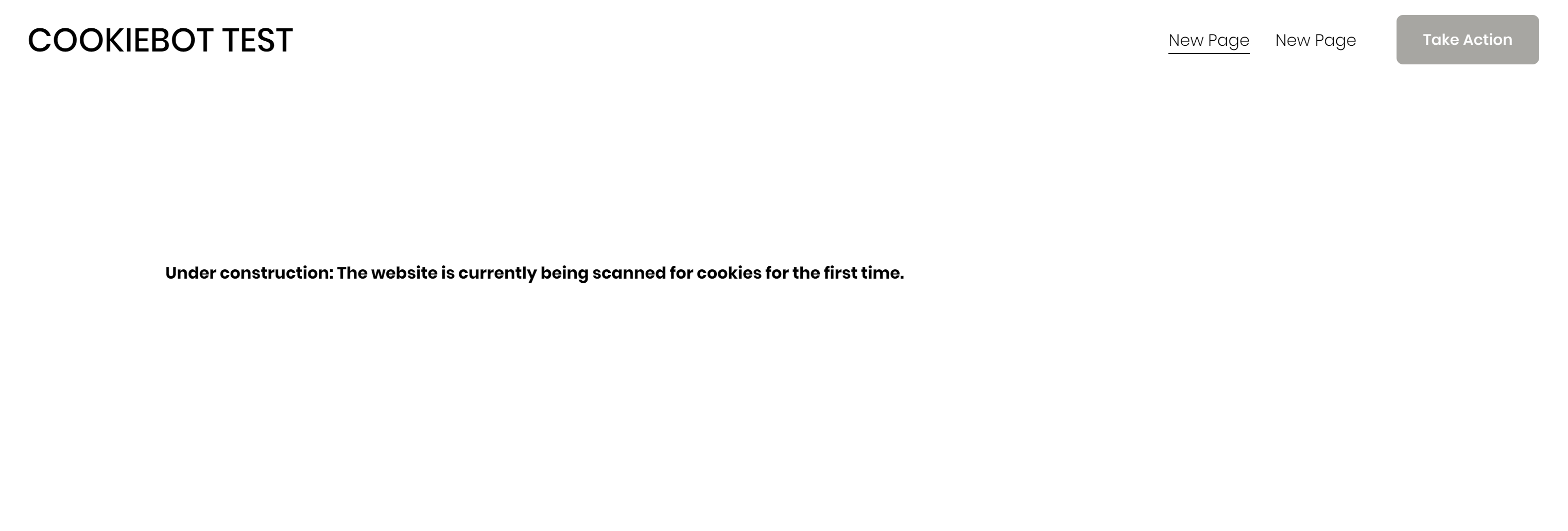
Congratulations, you are finished. Wait until Cookiebot is finished scanning your site, and check the Cookie Declaration page again.
Enabling Prior Consent
To effectively disable the Squarespace-native cookies, do the following.
1. In the Dashboard click the Settings icon at the bottom.
2. Under Website, click on Cookies and Data Privacy.
3. Start by disabling the Activity Log toggle.
4. Then finalize the process by clicking Restrict Cookies.
The platform’s non-essential cookies are now permanently disabled.
Comments
0 comments
Please sign in to leave a comment.